Act As — the child's view on your phone
With one tap, you switch to the child's view and run the routines exactly as they see them. A full copy — not a preview.
Use it to verify that everything looks right — or when the child borrows your phone to check off their tasks.
How Act As works
Designed to be simple — one tap in, one tap out. No separate accounts, no switching between users.

Not a test view — the real one
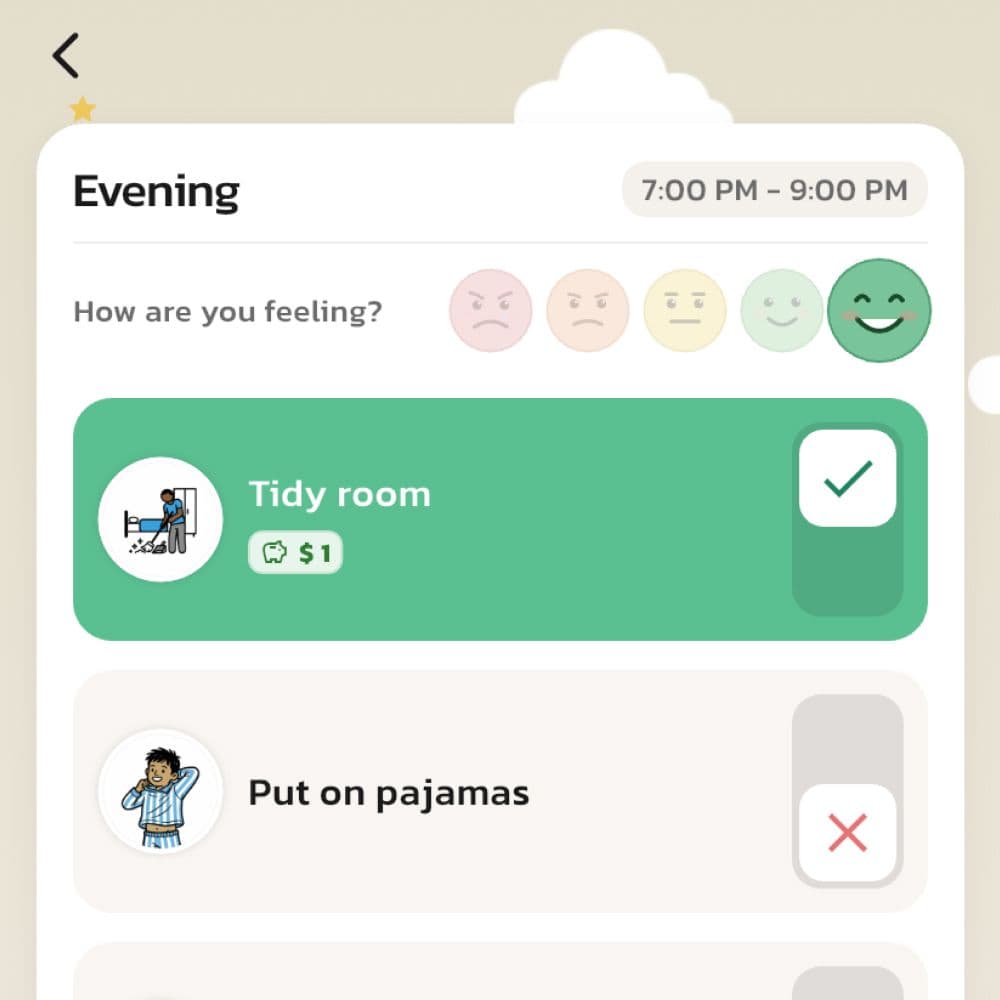
It's the same view the child sees at home — same images, same timer, same flow. The only difference is the button to leave Act As and return to the parent view.
Before the routine goes 'live'
Before you show a new routine to the child — run it yourself in Act As. Images, order, times, rewards are shown as the child will experience them. Adjust before the first impression goes wrong.
Works without the child's own device
Many children don't have their own phone — and don't need to. You switch into Act As, let the child check off their morning routine, then switch back when they're done.
Switch between multiple children
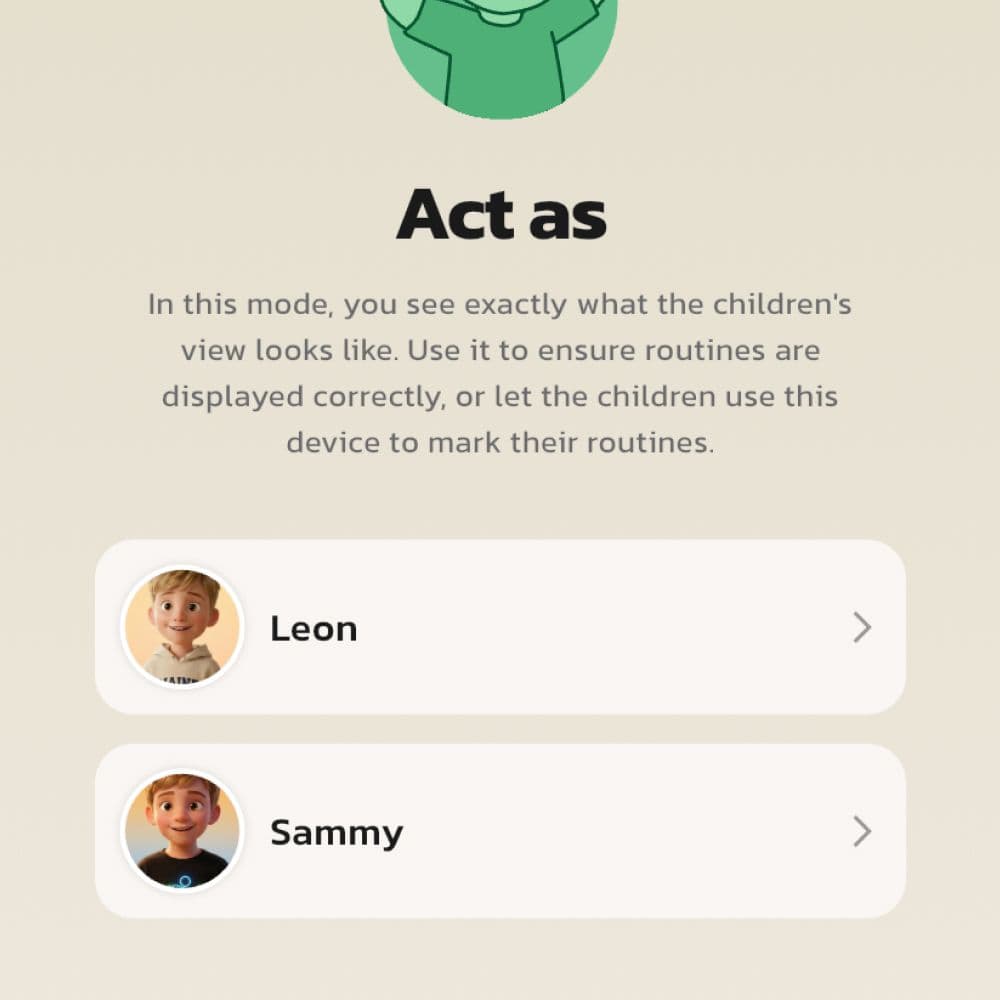
If you have several children, you can choose which profile to act as — good when you want to verify routines separately for each child or take turns helping several children with their routines.
Back with one tap
In the child's view, there is a button to leave Act As. One tap and you're back in the parent view with full rights and settings.
The difference between looking and experiencing
A static preview doesn't say much. You see the pictures, you see the text — but you don't experience how it feels to navigate. Act As is something else: the entire child interface, the same flow, the same transitions between steps, the same timer ticking in real-time. When you go through the routine yourself in the child view, you notice things you would never have discovered in the editor — an image that is unclear, an order that is incorrect, a timer duration that is too short.
When you should use Act As
Before a new routine goes "live"
Build the routine, go into Act As, run through it from the first to the last step. It takes 1–2 minutes and saves you from correcting a routine where the first impression has already been bad.
After major changes
Changed images, reordered, added new steps — use Act As to see that the whole still works in the child view. What seemed right in the editor can look strange when rendered full size on the child's screen.
When the child doesn't have their own device
Many families start with the child using the parent's phone — it's a good way to test Routined before investing in a separate device. Then Act As is the daily tool: you switch in, the child checks off tasks, you switch out.
What to check when you verify
- The order of the steps. Are they logical? Breakfast before teeth, or after? Get dressed before or after socks?
- Clarity of images. In the editor, the image looks like 100×100 pixels — in the child's view, it fills half the screen. Does it still work?
- Readability of texts. Is the text short? Is it understandable for a child?
- Timer durations. Is 5 minutes reasonable for this moment? Time yourself — then set the time with a margin.
- The reward. Is it shown at the right time? Is the amount reasonable?
Important to know — it's not a sandbox mode
This is not a "try-out mode" where everything resets when you exit. If you check off a step, it counts as done, and rewards are registered. That's the whole point — when the child borrows your phone to do their morning routine, the checkmarks SHOULD be saved. If you only want to view visually without registering anything, scroll and look without tapping.
Tip: invite the child to look with you
For older children: go into Act As together and let the child comment. "That picture is strange" or "why is it that order there?" are valuable observations — and make the child a co-owner of the routine instead of just a recipient.
Frequently Asked Questions
Ready to simplify everyday life?
Download Routined today and start the journey towards a calmer everyday life with your family.


* 14-day free trial included for new users.